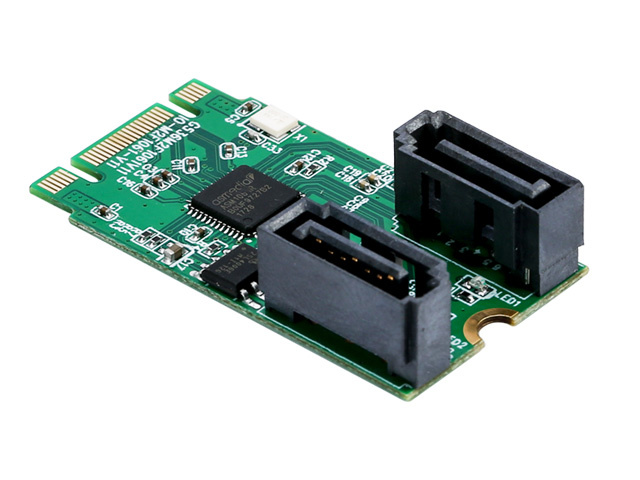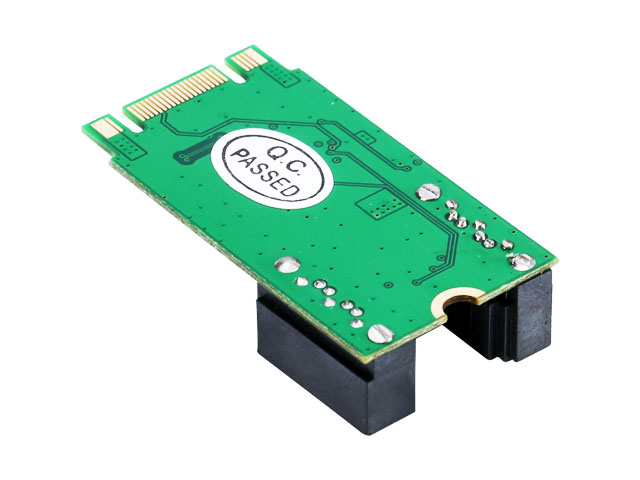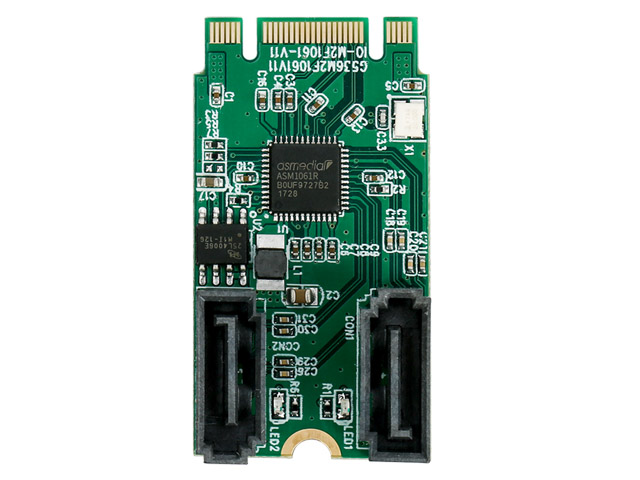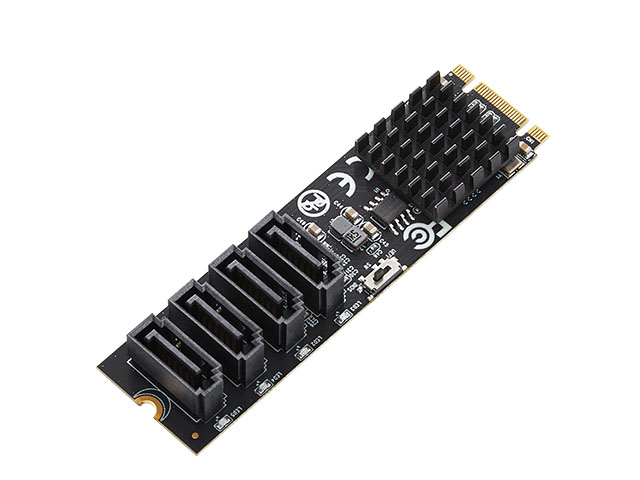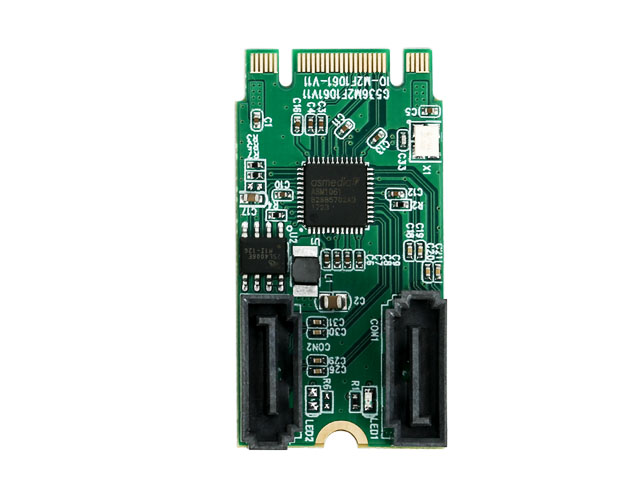


Lekuo M.2 to 2-Port SATA 6G RAID Adapter Card
• Wide Compatibility — Works with Windows, Linux, and Mac OS without extra drivers.
• Compact High-Speed Adapter — Converts M.2 PCIe to 2 SATA 6Gbps ports in a small form factor.
Features
•1-Lane M.2 PCI-Express 2.0 interface (B + M Key).
•Support communication speed of 2.5Gbps and 5.0Gbps.
•Compliant with Bus Master Programming interface for IDE ATA Controllers Revision 1.0.
•Compliant with Serial ATA AHCI (Advanced Host Controller Interface) Specification Rev 1.3.
•Support Message Signaled Interrupt(MSI).
•Serial ATA Revision 3.2.
•Support communication speed of 6.0Gbps,3.0Gbps,1.5Gbps.
•Support programmable transmitter signal levels.
•Supports 1i/1m/2i/2m/3i SATA PHY.
•Supports Native Command Queuing (NCQ)
•Supports Port Multiplier command based switching.
•Supports RAID0, RAID1, SPAN
•Note: Not Supported RAID on PM
•Supports Hot Plugging on SATA port
•Supports automatic rebuild
•Supports S.M.A.R.T feature
•Windows built-in driver
System Requirements
•Windows Server 2008,2012,2016
•Windows Vista, 7, 8,8.1,10
•Linux 2.6.20 and above
•Mac OS 10.3 or later version
Package Contents
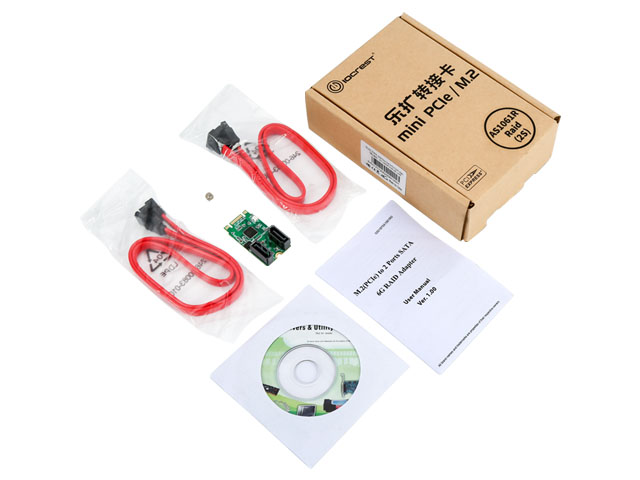
1 x M.2(PCIe) to SATA 6G adapter
1 x User Manual
1 x SATA Cable
Note: Contents may vary depending on country and market.
❓ Does this array card support UEFI mode?
✅ It supports both UEFI and legacy modes.
❓ What are the prerequisites for creating a RAID with the 1061R?
✅ The hard drives need to support the SATA interface, and at least two hard drives are required to create a RAID. Different RAID levels have different requirements for the number of hard drives. For example, RAID 1 requires at least two hard drives.
❓ Tutorial for creating RAID 1
✅ For the creation of RAID and the installation of the system, please open the following link: http://www.mmui.com.cn/index.php?id=1119. You need to enable CSM in the motherboard BIOS and select all legacy options. Save and restart. After the card's self-check screen appears, press Ctrl+R.
Is it necessary to format the hard drives before creating RAID 1?
✅ No, the hard drives will be automatically initialized when creating the array.
❓ Can I create RAID 1 with data already on the hard drives?
✅ Yes, but if the hard drives have data, you need to back up the data in advance.
❓ How to recover data if one of the drives fails?
✅ Replace the failed drive with a new, data-free hard drive of the same or larger capacity. If the replacement drive has been used before, it needs to be deleted of partitions and initialized.
❓ How to recover data if the array card fails?
✅ It is recommended to back up data before replacing the array card. Choose an array card of the same model and brand as the original to ensure that the RAID configuration data can be correctly recognized and read. After installing the new array card, it will automatically detect and read the existing RAID configuration data.
❓ How to recover data if one of the drives and the card fail simultaneously?
✅ Before replacing the card and the hard drive, back up the data from the good hard drive. Then, replace the damaged array card and hard drive. When replacing, choose an array card of the same model and brand as the original to ensure that the RAID configuration data can be correctly recognized and read. For the hard drive, the new hard drive must be in good condition.